
Plan mode and plan review
Plan mode lets Alisio think before it changes anything. You describe a goal, Alisio studies your project without touching it and hands you a written plan. You read it, decide, and only then does the implementation start.
Plan mode works in the web UI and in the terminal UI. Diagrams are drawn in the web; the terminal shows their source.
What plan mode is
Plan mode is the built-in plan agent. It can read your files and search your project, but it cannot change anything. When the plan is ready it asks you what to do.
How it works:
- Plan. You switch to the plan agent and ask for something. It investigates the project with read-only tools and writes a plan.
- Review. Alisio shows the plan and asks you to decide: agree, skip or add context.
- Build. If you agree, the chat switches to the
buildagent, which implements exactly that plan.
Ways to enter plan mode:
- Shift+Tab cycles the main agents:
build, thenplan, then your own main agents. Plan is the first stop. In the web it works while the focus is in the message box (see Agent selector and Shift+Tab). /agent:planin the message box, in the web and in the terminal.- The agent selector in the web composer (it shows Agent: build) lets you pick
plan. - In the terminal,
/agentsalso lists it (see Cycling agents).
Why it is read-only
The plan agent is read-only whatever the permission mode. This is enforced by the runner, not by the prompt: the run policy of the plan agent allows no write, no command and no network call, so choosing Full access never widens it. The tool that hands over the plan, exit_plan, only records a decision; it never starts work by itself.
The plan review
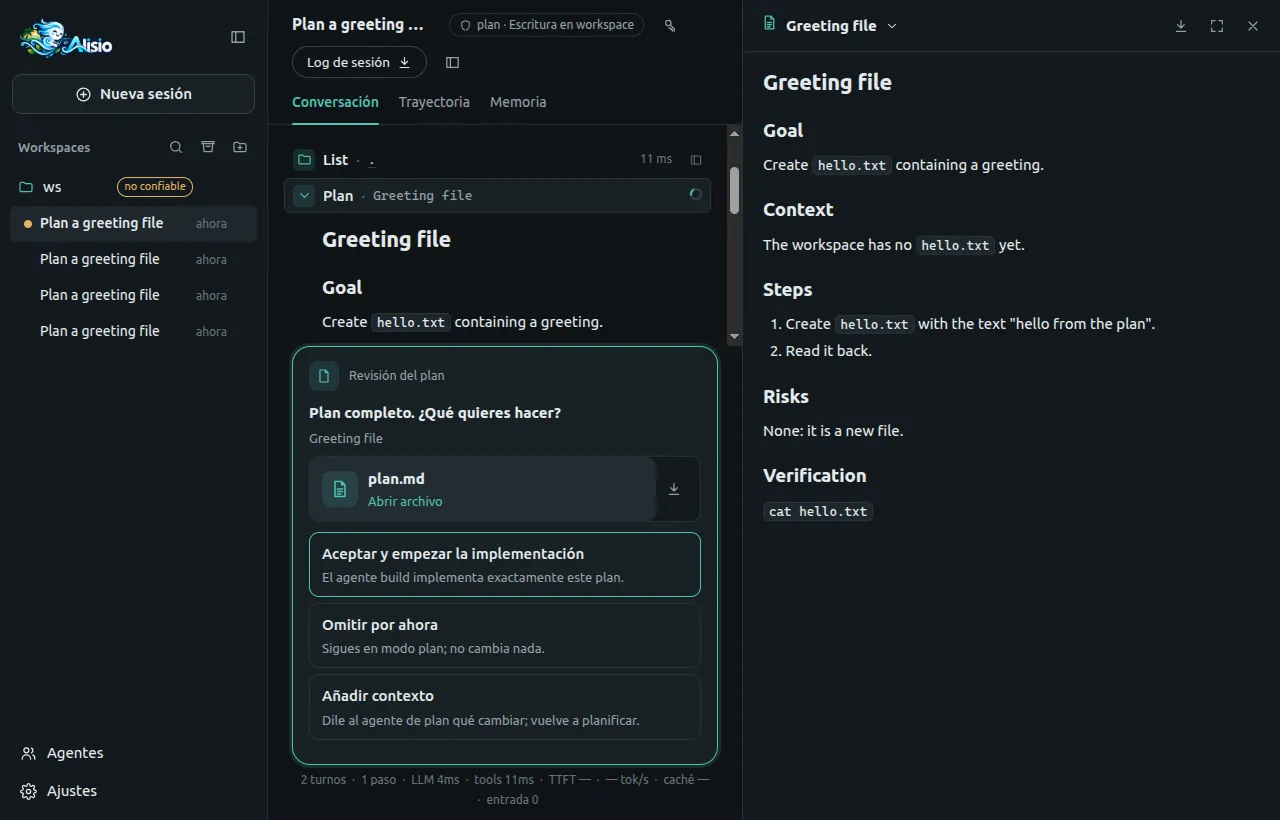
When the plan is complete, Alisio shows it in the conversation, saves it as the artifact plan.md and replaces the message box with a decision screen titled Plan complete. What would you like to do? You have three choices:
| Choice | What it does |
|---|---|
| Agree and start implementation | The chat switches to the build agent and one implementation turn starts. Its message carries the approved plan, and the chat's permission mode is not changed. |
| Skip for now | Nothing else happens. The chat stays in plan mode. Esc does the same. |
| Add context | A text box opens. What you send goes back to the plan agent, which keeps planning and proposes a new revision (see Revisions). |
Good to know:
- Approving is idempotent. Approving twice (a double click, two tabs, a reload) starts a single implementation turn.
- A reload keeps the review. If you reload the page while a review is pending, the same decision appears again. If you close the browser, the review stays pending for 30 seconds and then counts as Skip for now. So do cancelling the run and, in the web, leaving the review unanswered for 10 minutes.
- Take the time you need. The time you spend on the review is not counted by the run limit (
limits.timeoutMscounts active time, see configuration). In the terminal the review stays open as long as you want; in the web it is withdrawn after 60 minutes without an answer. If a run ends while a review is open, the plan artifact stays, the review counts as Skip for now and your next message works normally (the agent proposes a new revision). - The screen replaces the composer. While it is open, Shift+Tab and the agent selector do nothing.
- Esc behaves like Skip for now. While you type context,
Escgoes back to the three choices. - Scripts. A client that does not know the plan review (a script using the API) sees a normal question with the same three options.
What a good plan contains
The plan agent's instructions ask for a plan that is fully understandable as text, with these sections in this order:
| Section | What it holds |
|---|---|
| Goal | What will be true when the work is done, in one or two sentences. |
| Context | What the agent found in your project that the plan relies on: files, functions, conventions. |
| Steps | A numbered list. Each step names the files and functions to change and what changes. |
| Decisions | Only when there were real choices: each decision and why, in one line. |
| Risks | What could go wrong, what is uncertain and what was not verified. |
| Verification | The exact commands and checks that prove the work is done. |
plan.md always stays understandable on its own. Diagrams and the viewer are extras: if you only open plan.md, you lose nothing. The model can ignore the sections for a very small task; the viewer copes with that (see The plan viewer).
Diagrams
A diagram is a small picture that explains something the text does not: a flow, the parts of a system and how they relate, a sequence between components, or how data moves.
- The model adds one only when it adds understanding. A plan can carry 0 to 5 diagrams (the cap is
plan.maxDiagrams). A simple plan gets none. - Each diagram shows one idea, with about 40 nodes at most and short labels. It must not add information that is not in the plan.
- Every diagram has an
id, a title, one short explanation and the plan section it illustrates.
Format and allowed types
Diagrams are written as Mermaid text. The allowed diagram types are flowchart (and graph), sequenceDiagram, stateDiagram / stateDiagram-v2, erDiagram, classDiagram, gantt, mindmap, timeline and journey. The model is told to prefer flowcharts.
Alongside the Mermaid type, each diagram has a purpose: overview, flow, components, architecture, sequence, data, state or other. If the model gives none, Alisio infers it from the Mermaid type.
Style guide and colors
To keep diagrams consistent, the plan agent is told to mark flowchart nodes with seven semantic classes (:::name) instead of choosing colors:
| Class | Meaning |
|---|---|
input | What comes in |
process | A step, or a part that does work |
data | Stored or exchanged data |
system | A main part of the product |
external | A third party or an outside system |
decision | A choice or a condition |
risk | A risk or an uncertain part |
The web applies a color for each class, in a light and a dark variant that follow the interface theme, and Alisio's design tokens for everything else. The model does not set colors. The instructions also give shapes meaning: rectangles for steps, rounded shapes for start and end, cylinders for stored data and rhombuses for decisions.
What is rejected, and why
Alisio checks each diagram before saving it. It rejects whatever could run code, open links, load outside resources or loosen Mermaid's security:
click,linkandcallbackstatements,href, andjavascript:ordata:addresses.url()and@import.- HTML tags in labels.
- An
%%{init}directive or front matter that touches security settings (such assecurityLevelorhtmlLabels). - A diagram type outside the list above.
- Limits per diagram: 8 KB of source and about 40 nodes (an estimate made from the text).
The web also draws diagrams in Mermaid's strict security mode.
An invalid diagram
A diagram that fails the check is dropped with a reason. The plan is still published and reviewed, and the tool result tells the model which diagrams were accepted, which were dropped and why, so it can fix them in the next revision. Diagrams beyond the cap are dropped the same way.
A diagram that passes the check but has a Mermaid syntax error is kept. The web then shows its source and the error message instead of a picture.
The plan viewer
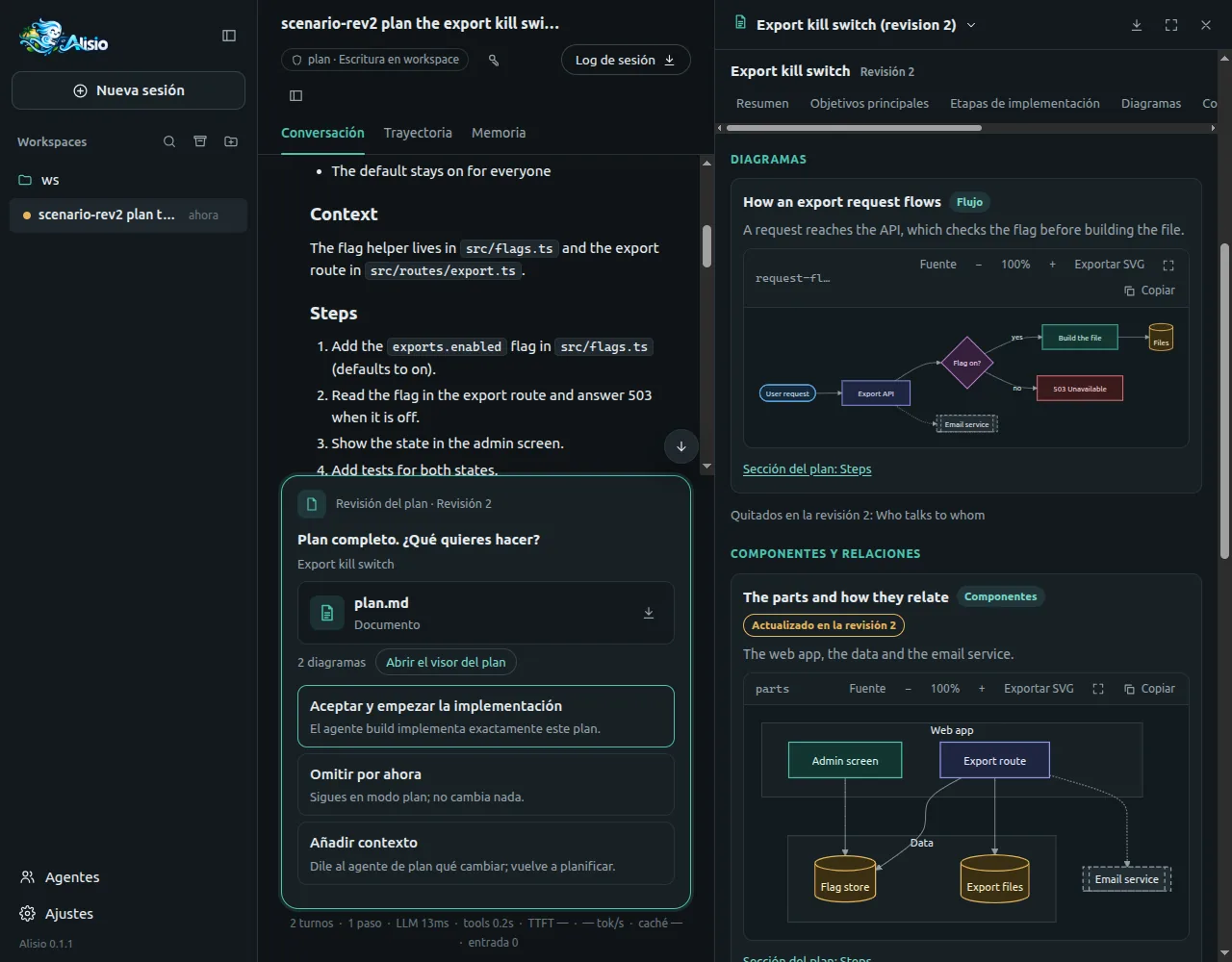
When a plan has diagrams, the decision screen shows a line such as 3 diagrams with Open plan viewer. The artifact card opens the same viewer in the side panel. The viewer shows these sections, in this order, and skips the ones that have nothing to show:
- Summary
- Main goals
- Implementation stages, as a numbered stepper
- Diagrams
- Components and relationships, for the diagrams of type
componentsandarchitecture - Decisions and considerations: decisions, risks and verification checks
- Full plan: the whole
plan.md
Details:
- Navigation both ways. Each diagram has a link Plan section: … that jumps to the section it illustrates. Each section of the full plan has links Diagrams for this section that jump back. Both move the keyboard focus too.
- Revision badge. From the second revision on, a diagram that is new or changed carries New in revision N or Updated in revision N. Diagrams the model dropped are listed as Removed in revision N.
- Diagram tools. Each diagram can be switched to its source, copied, zoomed, expanded to full screen and exported as SVG.
- Keyboard. The section bar works with the arrow keys,
HomeandEnd. Moving to a section also moves the focus there, and motion is reduced if your system asks for it. - Theme. The viewer follows the light or dark theme of the interface, and so do the diagrams.
- Small screens. The layout fits a phone width.
Files and downloads
A plan with diagrams is saved as one artifact per revision, as a folder:
plan/
├── plan.md            the plan, readable on its own (the entry)
├── plan.json          a summary generated by Alisio
└── diagrams/
    └── <id>.mmd       one Mermaid file per diagram
A plan without diagrams is the single plan.md file. Either way the card keeps the name plan.md, and the download of a folder is a ZIP (plan.zip) with those files. Find the artifact in the artifacts panel (see Python analysis and artifacts).
plan.json
plan.json is generated by Alisio from the plan text, not written by the model. The viewer reads it instead of parsing free text.
| Field | Content |
|---|---|
version | Format version (1). |
planId, revision, title, hash | Identity of the proposal. The hash covers the plan text and its diagrams. |
summary | A short summary, taken from the Goal section. |
goals | The items of the Goal section. |
stages | The steps of the Steps section, each with a title and optional detail. |
considerations | Decisions, risks and verification checks, each with its kind. |
sections | The headings of the plan (id, title, level). Diagrams point to them. |
diagrams | Per diagram: id, title, explanation, section, type, syntax, file, hash and status (new, updated or unchanged). |
removed | Diagrams of the previous revision that this one no longer has. |
The sections are recognized by their heading, with a few English and Spanish aliases (for example Goal or Objetivos). Other headings only feed the Full plan part.
When the manifest is missing or broken
If plan.json is missing or cannot be read, the viewer shows a note, the text of plan.md and the diagram files it finds in the folder. A diagram file that cannot be read shows its own error and the rest of the plan still appears. If plan.md itself cannot be loaded, the viewer shows an error with a Try again button.
Revisions
Each time the plan agent calls exit_plan, the result is a new revision: the artifact is titled "Plan title (revision N)", and the review screen shows the revision number from the second one on. Only the latest revision can be decided. This happens when you choose Add context: the agent revises the plan and proposes it again.
When it revises a plan, the model sends every diagram that still applies and leaves out the others. Alisio compares each diagram with the previous revision by a content hash and marks it:
- new: its
iddid not exist before; - updated: same
id, different title, explanation, section, type or source; - unchanged: same content.
Diagrams of the previous revision that are not sent again are listed as removed. Because the plan hash covers the diagrams, a change in a diagram alone makes a different proposal.
In the terminal and headless
In the terminal UI the review works with the same three choices (arrows and Enter; Esc skips). The terminal does not draw diagrams. After the plan, the transcript shows for each diagram:
- its title, purpose, the plan section it illustrates and its explanation;
- the Mermaid source, capped to 8 lines (the rest is in
diagrams/<id>.mmd); - from the second revision, whether it is new or updated;
- finally, the path of the plan folder on disk.
Open /artifacts to find the plan. Preview here shows plan.md as Markdown, and Open with default app or Reveal in folder reach the whole folder.
With alisio run, with --json or with --read-only there is no one to decide, so there is no review. The model gives the plan as plain text in its final answer, the plan files are still written and nothing is opened. In that case exit_plan returns unavailable.
Settings
| Key | Default | What it does |
|---|---|---|
plan.diagrams | true | Turns plan diagrams on or off. Off removes the diagrams argument from exit_plan and the style guide from the plan agent's instructions. |
plan.maxDiagrams | 5 | Most diagrams one plan keeps (0 to 8). 0 behaves like plan.diagrams: false. |
The size of one diagram (8 KB) and its node estimate (40) are fixed limits, not settings.
Where to change them:
- Settings page of the web UI (Plan diagrams and Most diagrams per plan).
/settingsin the terminal UI.- The configuration file:
{ "plan": { "maxDiagrams": 3 } }They are read live: the next plan request uses the new values.
Limitations
- Mermaid only draws in the web. The terminal shows the source. There is no standalone HTML viewer yet.
- The check is lightweight. It does not draw or fully parse Mermaid, so a diagram can pass and still fail to draw. The web then shows its source and the error.
- Nothing checks that a diagram is faithful to the plan. The instructions forbid adding information that is not in the plan, but the model can still get it wrong. Read the diagrams as an aid, not as proof.
plan.jsonis extracted from the Markdown sections the agent is asked to write. A plan with other headings still works, but the summary, goals and stages parts may be empty.- Each revision is its own artifact; older ones stay in the artifacts panel.
- Verification scope: the web viewer was checked in Chromium only, and the terminal side through its logic and panel, not in a real terminal. See Known limitations for the details.
For developers
exit_plan is offered only to the plan agent's run (never to build, subagents or Code Mode). Its effect is read, so every policy allows it.
Input: { plan: string, title?: string, diagrams?: [{ id, title, explanation, section?, type?, mermaid }] }. plan is Markdown, up to 60,000 characters; diagrams appears only while plan.diagrams is on.
Result: a JSON text with a decision (approved, skipped, feedback or unavailable), a message for the model, the artifactId and, when diagrams are involved, a diagrams report with accepted, dropped (with reasons) and removed. feedback also carries the context you wrote.
The tool always returns a result, so a session never keeps a dangling call. The full schema and the decision table are in Handing over a plan: exit_plan.
Events. Two durable run events describe the review: plan_proposed (call, plan id, revision, hash, title, artifact) and plan_decided (call, plan id, hash, decision). The Trajectory tab of the web UI lists a session's durable events (see Web UI).
Related pages: Agents, Tools & permissions, Terminal UI, Web UI, Configuration, Python analysis & artifacts.