
Web UI (alisio serve)
alisio serve starts a local HTTP server that gives a browser access to several workspaces and sessions at once. It drives the same agent core as the terminal: sessions, runs, approvals and the session database are shared with the TUI and alisio run.
Status
The server, its API and the browser interface are available, including image attachments, the files panel, the trajectory view, developer renderers (diff, terminal, JSON, test results), Mermaid diagrams, TeX formulas and the Settings pages for models, plugins, skills, MCP servers and agent presets. See Known limitations.
Start the server
alisio serve                      # http://127.0.0.1:4317, opens the browser
alisio serve --no-open --port 0   # any free port, print the URL only
alisio serve --allow-write        # web sessions may write files without asking
The command prints a launch URL with a one-time token, for example http://127.0.0.1:4317/?token=…. Opening it exchanges the token for a session cookie and redirects to /. Keep the URL private: whoever opens it first in a browser can drive the agent with your permissions. Press Ctrl+C (or send SIGTERM) to stop the server; a second Ctrl+C forces exit.
alisio, alisio run and the TUI never load the server: it is imported only by alisio serve.
Flags
| Flag | Default | Description |
|---|---|---|
--port <port> | 4317 | Port to listen on; 0 picks a free one |
--host <address> | 127.0.0.1 | Address to bind; anything but loopback requires --allow-remote |
--allow-remote | off | Allow a non-loopback --host (no TLS; prefer an SSH tunnel) |
--no-open | opens | Do not open the browser |
--max-workspaces <n> | 4 | Workspaces with an open application at once |
--max-runs <n> | 4 | Runs executing at once across all sessions; more wait in a queue |
The global flags apply too. The permission flags (--allow-write, --allow-process, --allow-analysis, --allow-external, --allow-mcp, --read-only) are the ceiling of every web session: the browser can narrow them per session but never go beyond them. --trust-project and --config apply to every workspace the server opens, like in the terminal. --db selects the shared session database. Set ALISIO_LOG_LEVEL (debug, info, warn, error, silent) to control the JSON log lines the server writes to stderr.
Using the web UI
The page has a sidebar on the left and the open session on the right.
Sidebar. New session starts a session in the workspace you are looking at. Under Workspaces, each folder lists its sessions, pinned first and then the most recently used, with a relative time ("4 min"). A dot before a title shows a session that is running, waiting for you, in use by another process or whose last run failed. The icons next to the heading search sessions (also Ctrl+K / Cmd+K), show archived sessions and workspaces, and open another workspace (see Opening a workspace). Hover a session for Pin and Archive, or a folder for a new session inside it and its actions menu (Pin, Archive / Unarchive). Settings sits at the bottom; the panel icon collapses the sidebar to a narrow rail. Below 900 px the sidebar becomes a drawer opened from the header.
Header. Click the title to rename the session (untitled sessions show their first prompt). The badge shows the agent and the permission preset. Session log downloads the session as JSON Lines: every durable event in the alisio run --json format, then one {"type":"message"} line per stored message. The panel icon at the right opens the files panel (below). The Conversation, Trajectory and, while the memory plugin is enabled, Memory tabs switch the main view.
Conversation. Your messages appear on the right with a copy button. The agent's work appears as one-line rows: Think · … for reasoning, Context injection · AGENTS.md, and one row per tool call such as Read · README.md or Shell · npm test. Click a row to see its input and output. The answer streams as Markdown; code blocks have a language label, Wrap lines and Copy, and are highlighted once they scroll into view. Links to workspace paths open the file in the files panel. ```mermaid blocks become diagrams and ```math, $$ … $$ paragraphs and inline \( … \) become formulas (a lone $ stays text, so prices are safe). The page loads Mermaid only when a diagram scrolls into view and KaTeX with the first formula. Diagrams have Source, zoom, Export SVG, full screen and Copy; formulas have a copy button for their TeX. An invalid diagram or formula shows its source and the error instead, without breaking the message. Reasoning is display-only: after a reload, earlier Think rows are gone because reasoning is never stored. When you scroll up, a button jumps back to the latest message; long sessions show the last 30 turns and load older messages on demand.
Run status. While a run is live, one line at the end of the conversation says what it is really doing, taken only from the events and streamed output the page has received: Waiting for the model…, Thinking…, Writing the answer…, Reading your data (sales.csv)…, Running Python (analysis.py)…, Publishing the artifact (dashboard.html)…, Running <tool>…, Compacting context… (also during a manual /compact, when there is no run; sending is blocked until it finishes and the typed draft is kept), The model did not respond; retrying (1/1)… (while a silent request is being sent again, see limits.firstTokenRetries), The response was cut off; retrying in smaller steps (1/2)… (the output-token limit cut the response and the turn is requested again, see limits.truncationRecoveries), or Waiting for your approval / your answer (those two never count as a stall). Next to it are the run's elapsed time, the time in the current step and when something last arrived (last update 3 s ago). If nothing arrives for 15 s the line says how long the run has been quiet and shows Stop; after 60 s it says plainly No response from the model for 60 s (or No output from <tool> … when a tool is the one running) and suggests waiting or stopping. A sub-agent wait is never reported as a stall because its events belong to another session. The line only reads frames, it never invents activity. It announces itself to screen readers only when the step or the quiet level changes (not every second) and its spinner stops with reduce motion. After a reload the elapsed time continues from the server's start time; the last update time restarts at the reload because the page cannot know when the previous frame arrived.
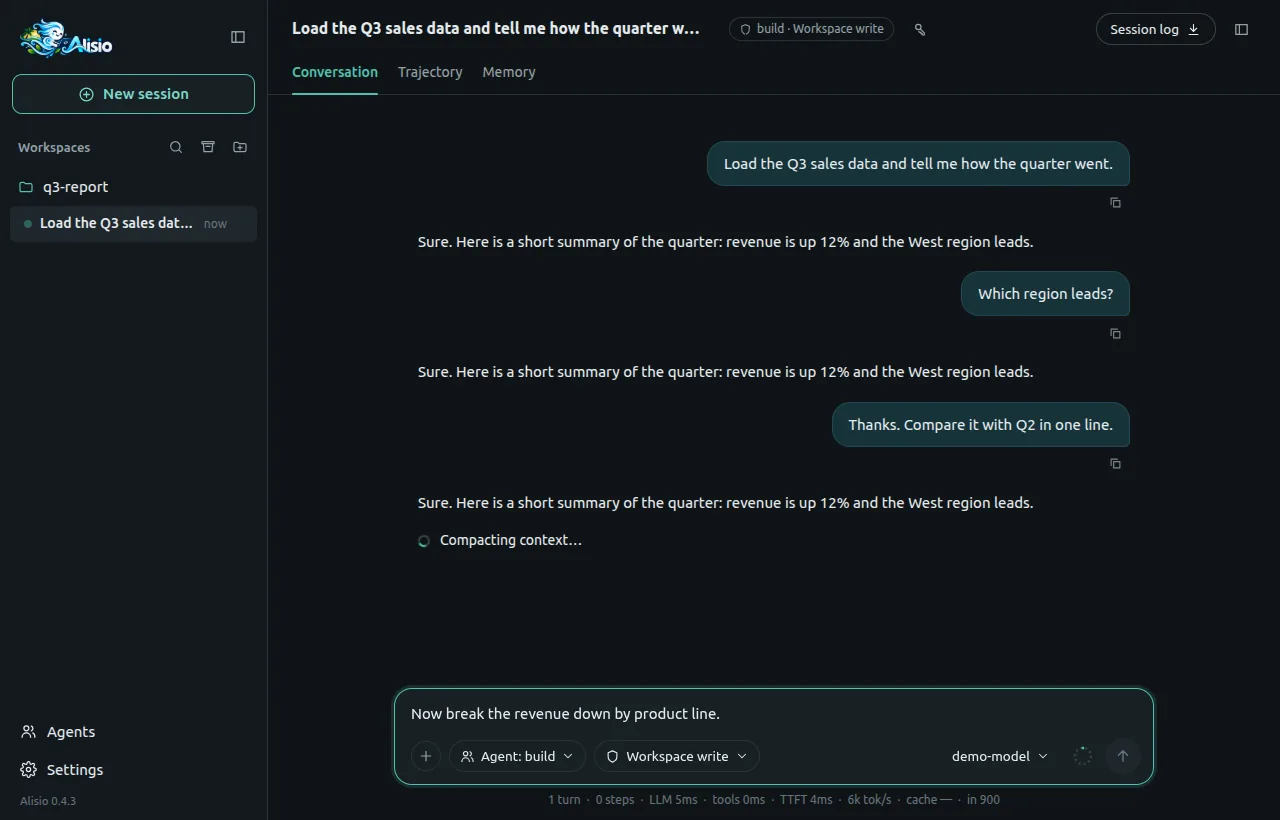
/compact in progress: the status line is shown, sending is blocked and the draft stays in the message box.If a run is stopped by its time limit, the conversation shows a message that names the model and the provider, the number of seconds of active time and how to proceed (retry, switch model, raise limits.timeoutMs, see configuration). Time you spend deciding on an approval, a question or the plan review is not counted against that limit.
Tool output. Tools that return structured blocks get a native view, each loaded the first time it is needed: file writes and edits show a diff (unified by default, Side by side on demand, foldable hunks, a file list when a patch touches several files); shell commands show their output with ANSI colors, the exit code and the duration, streaming while they run and keeping the last 2 000 lines behind Show earlier lines; JSON shows a foldable tree with copy of values and of their JSONPath; test results show passed, failed and skipped counts with a Only failures filter; progress blocks show their steps. The tool's raw text, which is what the model received, stays under Raw output. A block the page does not know shows its text and the folded JSON. The panel icon on a tool row with a path opens that file. Tools contributed by plugins show their own name followed by the plugin's name as a tag (for example Test report · Smoke tools).
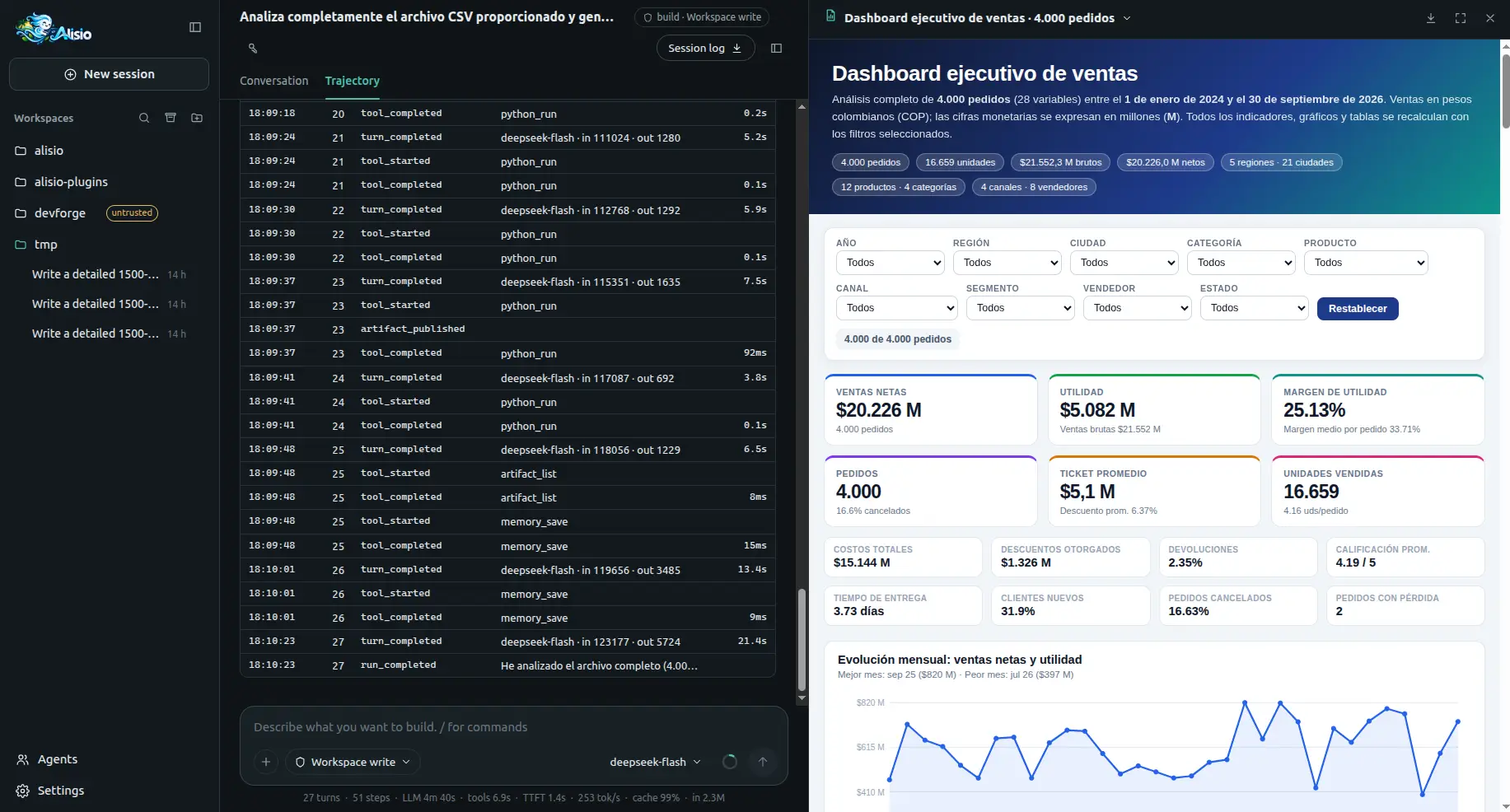
Trajectory. The Trajectory tab lists the session's durable events grouped by run: status, start time, turns and duration per run, and one row per event with its time, turn, type, a short summary and its duration when it has one. It updates as events arrive; older runs sit behind Show earlier runs.
Files panel. The panel icon in the header opens a panel on the right (a bottom sheet below 900 px) with three tabs. Files browses the workspace lazily, 1 000 entries at a time, hiding .git and, in git repositories, what .gitignore excludes. Changes lists the files this session (and its subagents) wrote, most recent first, with their git status code; picking one shows its diff against HEAD and the file. Preview shows text and code with highlighting, Markdown, JSON as a tree and images; files over 2 MB are cut with a Download link, binary files are only downloadable, and HTML or SVG shows as source, never as a page. From the preview you can copy the path, download the file or mention it (@path) in the composer.
Composer. Enter sends, Shift+Enter inserts a new line, and ↑/↓ on the first line walk through the prompts you sent. Typing / opens the command palette (arrows to move, Enter or Tab to pick, Esc to close): commands run on the server and their output appears in the conversation; prompt templates, skills and /ask become a prompt. / anywhere outside a text field focuses the composer.
Side questions (/btw). /btw question asks something about the current session without adding it to the conversation, also while a run is working. A floating panel shows the pending question (with Cancel), then the Markdown answer, the model and the tokens it used, a copy button, and ‹ 2/5 › to browse earlier side answers (←/→ when the focus is not in a text field; Esc closes it and cancels a pending question). /btw alone opens the panel on your most recent side answer, or shows Usage: /btw <question> when there is none. Side questions are never written to the transcript, events, runs or session tokens; the last 20 per session are kept and shared with the TUI.
Below the text box:
| Control | What it does |
|---|---|
+ | Attach PNG, JPEG, GIF or WebP images, up to 10 MB each and 8 per message (paste and drag and drop work too) |
| Permission preset | Read only, Ask, Workspace write or Full access for this session |
| Model and effort | Model of the workspace's provider and the reasoning effort the model supports |
| Context ring | Estimated context of the next request against the model window |
| Send / Stop | Stop replaces Send while a run is active and the box is empty |
While a run is active you can keep typing: text is queued for the session's next turn. Images upload as soon as you add them and show as thumbnails you can remove; they can only be sent when no run is active.
Stats line. Under the composer, one line sums up the latest run: turns, steps (tool calls), time spent in the model and in tools, the average time to first token, output tokens per second, the share of input served from the provider's prompt cache and the input tokens. Hover it for the totals of the whole session; when decisions happened, the tooltip also shows how many were answered and how many fell back (see Decision Intelligence). Cache shows — when the provider does not report cached input. The /decisions command works in the composer like in the terminal: see /decisions.
Approvals and questions. When a tool needs approval, a panel takes the composer's place and receives focus: it names the tool, the effect and its input. Answer with Deny (D), Allow once (O) or Allow for session (S); keys pressed in the first 300 ms are ignored so a stray Enter cannot approve. Plugin questions (for example ask_user_question) appear the same way.
Settings. The gear at the bottom of the sidebar opens Settings. Pages that manage agent resources act on the workspace of the open session (or the first workspace when none is open):
| Page | What it does |
|---|---|
| General | UI language (this browser), then the agent settings: compaction, context, limits, plugin hook timeout and web search provider, saved to your user config.json |
| Models | Provider profiles with their non-secret values, credentials and Activate in this workspace with a model of that profile; Add a profile creates one |
| Plugins | Plugin configuration (not sandboxed, how plugins are installed, the project file) and Plugin list: search, count and cards with an Enabled, Disabled, Failed or Restart required pill; the chevron shows version, categories, source, tools, commands, diagnostics and the switch |
| Skills | Discovered skills with scope, size and a switch; disabled skills leave the / palette |
| MCP servers | Status, transport and counts of each configured server, enable switch and Connect; Grant MCP access asks for an explicit confirmation first |
| Agent presets | build, plan and main-capable user or plugin agents, with instructions and suggested model; Use in this session switches the open session |
| Appearance | Theme (dark, light or system) and whether tool rows start collapsed or expanded, stored in this browser |
Open configuration file (top right) shows the effective configuration file of the workspace, your user settings file and the provider profiles file, each with a copy button. The server never opens an editor. The Alisio version (the server's, the one alisio --version prints) is shown in Settings → About and, discreetly, at the bottom of the sidebar.
Credentials are write-only. A credential field is a password input: after Save it is cleared and the page only shows whether a value is stored, whether it comes from an environment variable, and, for stored values of 16 characters or more, the last three characters (Stored · ends in …71B). No API response contains a secret.
Enabling or disabling a plugin writes a project override (.alisio/config.json) and needs the workspace to be trusted. Plugins are loaded when the workspace application starts, so the server reloads that application as soon as it has no runs: immediately when it is idle, otherwise when its last run finishes (the card shows Restart required meanwhile). Sessions keep their history, and every open command palette refreshes. Skill switches apply at once. Plugins cannot be installed from the web.
Security model
The server is designed for one user on one machine:
- It binds
127.0.0.1by default. Exposing it on a network requires--host <address> --allow-remoteand prints a warning; there is no TLS, so use an SSH tunnel instead. - A 256-bit launch token is generated per process and never written to disk. The browser exchanges it once for an
HttpOnly; SameSite=Strictcookie that holds a separate secret. - Every request must name this server in
Host(DNS-rebinding defense), and requests with side effects need a matchingOriginandContent-Type: application/json(CSRF defense). - Responses carry a strict Content-Security-Policy,
X-Frame-Options: DENY,nosniff,Referrer-Policy: no-referrerand same-origin opener/resource policies; API responses are not cached. - Approvals are fail-closed: when no browser tab watches the session for 30 seconds, when the run is cancelled or after 10 minutes, the answer is deny.
- Plugins are not sandboxed: a trusted project's plugins run inside the server process with its operating-system permissions, exactly as in the terminal.
- The native folder dialog and the in-app folder browser exist only on loopback. The browser lists directory names (never files or contents) that the server's user can read, the same trust as that user's terminal; with
--allow-remoteboth are off and only a typed path is accepted.
Workspaces and trust
A workspace is a directory (its git root when inside a repository). The server lists the workspaces of existing sessions plus the directory where alisio serve started, and opens an application for a workspace only when it is used. At most --max-workspaces are open at once: the least recently used idle one is closed to make room, and when all of them are busy the request fails with workspace_limit. Idle workspaces close after 10 minutes.
A workspace whose folder was deleted or moved stays in the sidebar, dimmed and marked "folder not found": its sessions remain readable, but you cannot start new sessions or send prompts there (the server answers 404 workspace_missing). New session uses the current session's workspace, or the most recently used one that still exists; with none, it asks you to open a workspace. Folders with the same name show a short parent path next to it, and the full path on hover.
Archive a workspace from its actions menu to hide it and its sessions from the sidebar; Show archived brings both back (archived workspaces are listed last). Archiving keeps every session, which stays readable, closes the workspace's idle application and is refused with 409 runs_active while a run is active. New sessions in an archived workspace are refused with 409 workspace_archived; Unarchive it, or open the same folder again, to use it. This is also the way to hide a workspace whose folder no longer exists.
Opening a workspace
The folder button next to Workspaces (and New session when no workspace exists yet) asks for a folder in the best way the server supports:
- Native folder dialog. Browsers never give a page the absolute path of a folder, so the server opens the operating system's own dialog on its desktop and uses the folder you pick (a note in the sidebar says so while it is open; only one dialog at a time).
- Linux (and BSD):
zenity, elsekdialog, elseyad, found onPATH; it needs a desktop session (DISPLAYorWAYLAND_DISPLAY). - macOS:
osascriptwith AppleScriptchoose folder. - Windows: Windows PowerShell (or
pwsh) with the WinForms folder dialog, and the Shell folder browser as a fallback.
- Linux (and BSD):
- In-app folder browser when there is no dialog tool (headless machine, SSH session,
ALISIO_NATIVE_PICKER=0): a window that lists folder names only, starting at your home folder, with breadcrumbs, a parent-folder button and Show hidden folders. On Windows its top level lists the drives. - Type a path is always available as a link, and is the only option when the server is bound for remote access (
--allow-remote), because a dialog or folder listing would show the server machine rather than yours.
A directory you have not trusted opens without its project resources (configuration, plugins, agents, skills, prompts) and is marked untrusted. Trust it from its ⋯ menu in the sidebar (Trust this workspace…) or from the Agents editor, after a confirmation that explains what trust unlocks; or run alisio in that directory to answer the terminal prompt. Both store the same decision, bound to the content of .alisio/config.json: if that file changes, the workspace is untrusted again until you confirm. The workspace reopens so the change applies at once (it is refused while its runs are active, under --read-only, and when --trust-project/--config fix trust for the server). Stop trusting this workspace… withdraws it.
Sessions, runs and permissions
Several sessions can run at the same time, in one or more workspaces. A session runs one prompt at a time: text sent while it is running is queued for its next turn, while attachments must wait until it is idle. Runs beyond --max-runs wait in a first-in, first-out queue. Retrying a prompt with the same request id never starts a second run.
A session that another Alisio process is using (for example the TUI) is reported as locked and is read-only in the web until that process releases it.
Each session has a permission preset, which is also its permission mode (ask, auto or full, see Permission modes). Effects the launch flags do not allow keep asking, whatever the preset:
| Preset | Mode | Allowed without asking | Other effects |
|---|---|---|---|
read-only | none | reads | denied |
ask | ask | reads | ask for approval |
workspace-write (default) | auto | reads, writes | ask for approval |
full-access | full | reads, writes, processes, network | ask for approval |
"Allow for session" in an approval widens only that session, never the other sessions of the same workspace.
Agent selector and Shift+Tab
The composer toolbar shows the active agent (Agent: build) next to the permissions menu. Open it to pick any main agent; the choice is stored on the session and applies from the next prompt. Shift+Tab with the focus in the message box cycles the same list: build, plan, then your own primary agents by name, wrapping around. The shortcut is ignored while the / palette is open, during an IME composition and with any other modifier, and a screen reader announces the new agent.
Accessibility trade-off: Shift+Tab normally moves the focus backwards, so intercepting it in the message box changes what keyboard users expect there. The agent selector is the accessible path (reach it with Tab) and is always available; the shortcut only acts while the focus is in the message box, and everywhere else Shift+Tab keeps its usual meaning. Cycling is allowed during a turn because it only stores the next agent.
Permission modes
/permission (also /permissions) opens the permissions popover from the header: three radio options, Ask, Auto and Full access, the status of the session and Manage saved permissions…, which shows the saved grants (for example Python analysis allowed for this session) with Revoke. Choosing Full access asks for a confirmation that says it is not a sandbox. A mode the server cannot offer (its launch flags are the ceiling, or it runs with --read-only) is listed as unavailable with the reason. /permission ask, /permission auto, /permission full and /permission status run without opening the popover and answer in the conversation; the permissions menu of the composer keeps the four presets.
Plan mode and plan review
Switch a chat to the plan agent (the selector, Shift+Tab or /agent:plan) and it investigates with read-only tools, then hands over its plan with exit_plan. The plan opens in the conversation, is saved as a plan.md artifact and the composer gives way to the decision screen: Agree and start implementation, Skip for now (Esc does the same) or Add context. The plan run is read-only whatever the permission mode. The full guide, with screenshots, the decision rules and revisions, is Plan mode and plan review.
Plan diagrams and the plan viewer
A plan can carry small Mermaid diagrams. The decision screen offers Open plan viewer and the plan card opens the same viewer in the side panel: sections, diagrams drawn in Alisio's palette, links between diagrams and text, and a ZIP download. See The plan viewer; turn diagrams off or cap them with plan.diagrams and plan.maxDiagrams.
Background tasks
Commands the agent starts with bg_run keep running while you chat. The header's panel icon opens the right panel, whose Tasks tab lists them (the tab shows how many are running, and the panel icon gets a dot while any is). Pick one to follow its live output: it is read incrementally once a second, shown in the same terminal view as shell results (colors, copy, the last 2 000 lines) and keeps the last 200 000 characters. Stop ends a running task as you (it becomes Stopped, never Failed). The list also shows the session's subagents as a read-only view of their status; they are managed as before. /tasks in the composer opens the tab, and the panel is loaded on demand (it is not part of the initial bundle).
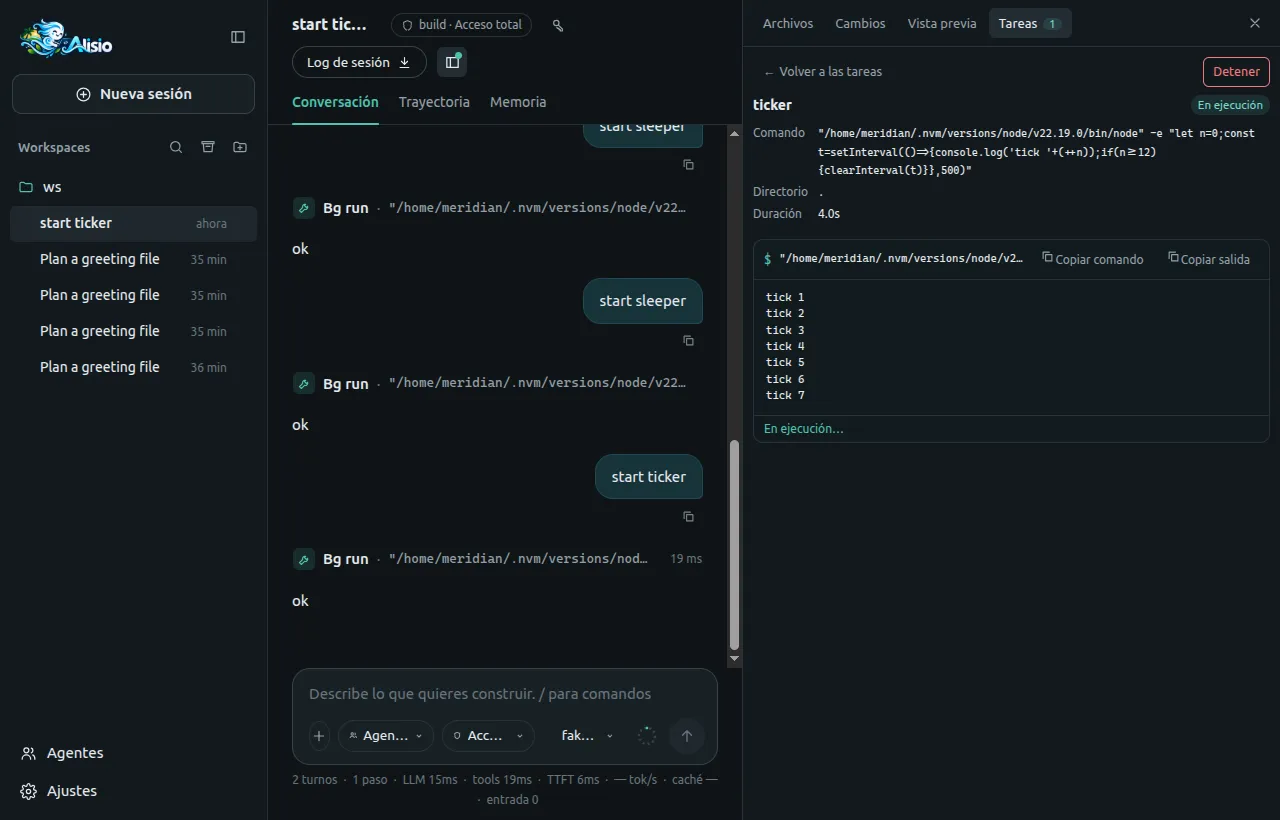
When a task ends on its own a toast says so (not for a task you or the agent stopped), and one coalesced message wakes the agent: it appears in the chat as Background task finished: … and the agent can read the output with bg_output. The message waits while the session is running, an approval or a question is open, or the session is locked by the TUI. Tasks are not sandboxed, end when alisio serve stops (or the workspace's application is closed) and show as Lost after an abrupt stop; a workspace with running tasks is not evicted when idle, and /reload answers 409 until they end or are stopped. A task is only reachable through the session that owns it.
Session goals
/goal <objective> gives the agent one objective for the session and lets it keep working on it, turn after turn, until it is done, blocked, paused or out of budget. The goal bar above the message box shows it, loads on demand (it is not part of the initial bundle) and comes back after a reload (the stream's snapshot carries the goal). The agent marks the goal complete or blocked with update_goal, with evidence; only you pause, resume, edit or clear it or change its budget. The commands, states and limits are the same as in the terminal: see Session goals.
Cost. A goal keeps spending tokens by itself, and each turn sends the whole context again. A goal without a token budget is stopped only by its turn and time limits (
goal.maxTurns50,goal.maxMinutes120): give long objectives a budget (/goal <objective> budget=50k).
The bar shows the status (Active, Paused, Blocked, Budget reached, Complete), the objective, a progress bar for the token budget (it turns amber at 80 % and red when spent), the turn n/max, the time spent in runs and why the goal waits or stopped (Waiting for your answer, Waiting for permission, Waiting for background tasks, plan mode, or the reason code in words), announced to screen readers. Its buttons follow the state: Pause (while active), Resume (paused or blocked), Edit and Clear (always; Clear asks first). Edit opens a form for the objective and the token budget (50k, 1.5M, clear; Ctrl/Cmd+Enter saves, Esc cancels). A complete or blocked goal shows the agent's report and its evidence under Agent's report.
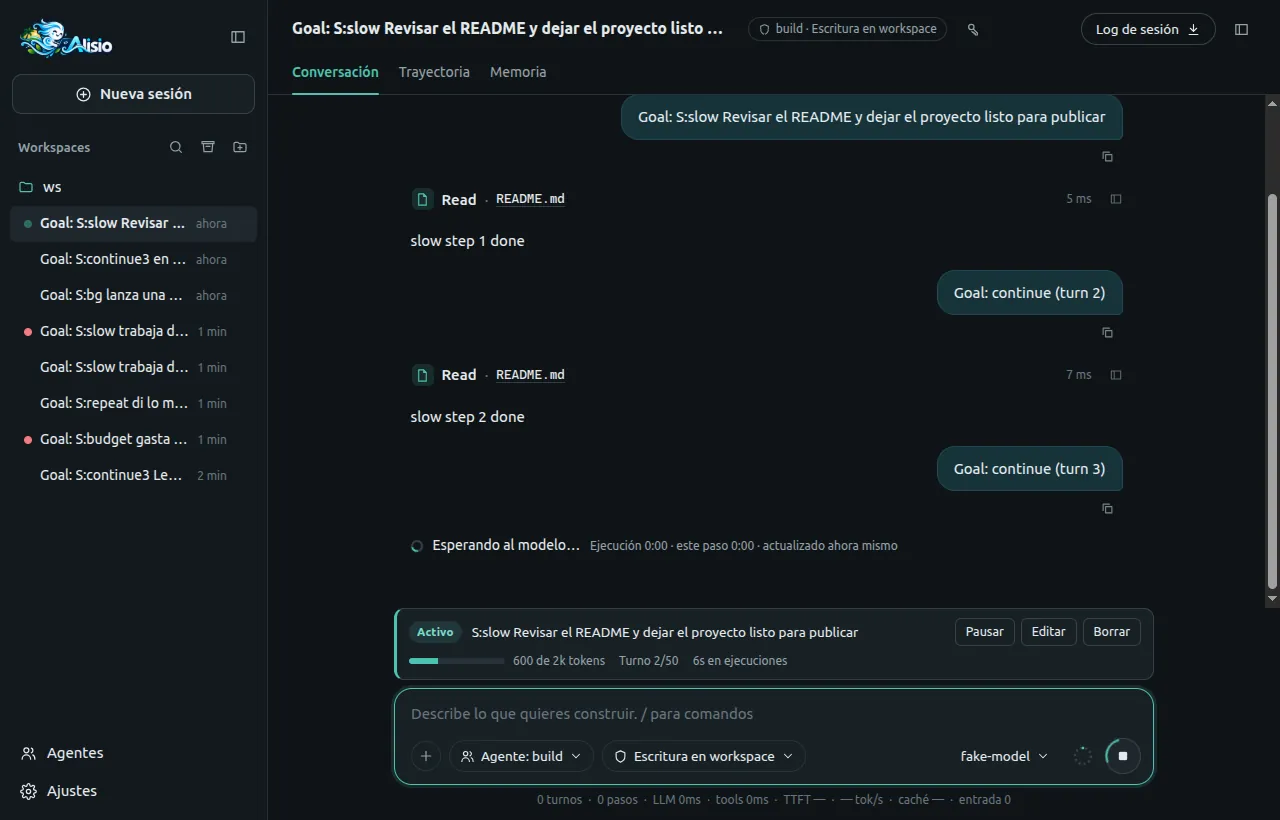
In the composer, /goal and its subcommands work as in the terminal: typing /goal lists /goal pause, /goal resume, /goal edit and /goal clear (the ones the current state allows) in the palette; a new objective over an existing goal asks for confirmation; /goal edit without text opens the form. Every change is a compare-and-set, so two windows cannot fight: an action based on an out-of-date view is refused and the bar reloads the goal.
A goal never continues while an approval, a question or a plan review is open, while background tasks of the session run, in plan mode, while you have a turn running, or after you interrupt it (Stop pauses the goal). If the server stops while a goal is active it comes back paused (reason restart) after the restart and never resumes by itself. Goals use the session's permission preset like any turn and never widen it. alisio run has no /goal in v1.
/reload and /changelog
/reload re-reads the configuration, agents, skills, prompt templates and MCP servers of the session's workspace. It is refused (409) while the workspace has runs. The server validates the configuration and builds the new application next to the current one before swapping, so a broken file changes nothing and the error says why. The conversation shows the report (what changed per area and what needs a restart, such as already imported plugin code), a toast confirms it and open palettes and settings pages refresh through catalog_changed. /changelog [version] opens a dialog with the shipped changelog, which works offline. After an upgrade one discreet toast says so; the last seen version is kept in the browser's localStorage and nothing breaks when storage is blocked. Both commands are interactive only: alisio run is unchanged.
Memory tab
While the built-in memory plugin is enabled, a Memory tab appears next to Conversation and Trajectory. It shows what the plugin holds for the open chat, read-only, in three sections:
- Saved in this chat: the memories saved while this chat was open (by the model, by compaction or by the end-of-session summary), pinned first and then newest. Filter by type, search title, content and topic, and press Load more to read 20 at a time. Each entry shows its type and title, a summary of its content (Show more / Show less), when it was updated, where it came from and the raw record under Details.
- Session summary: the summary the plugin stored for this chat (one per session; compaction and the end-of-session summary overwrite it).
- Context loaded: the memory context the plugin added when this chat started, which is what the model saw first.
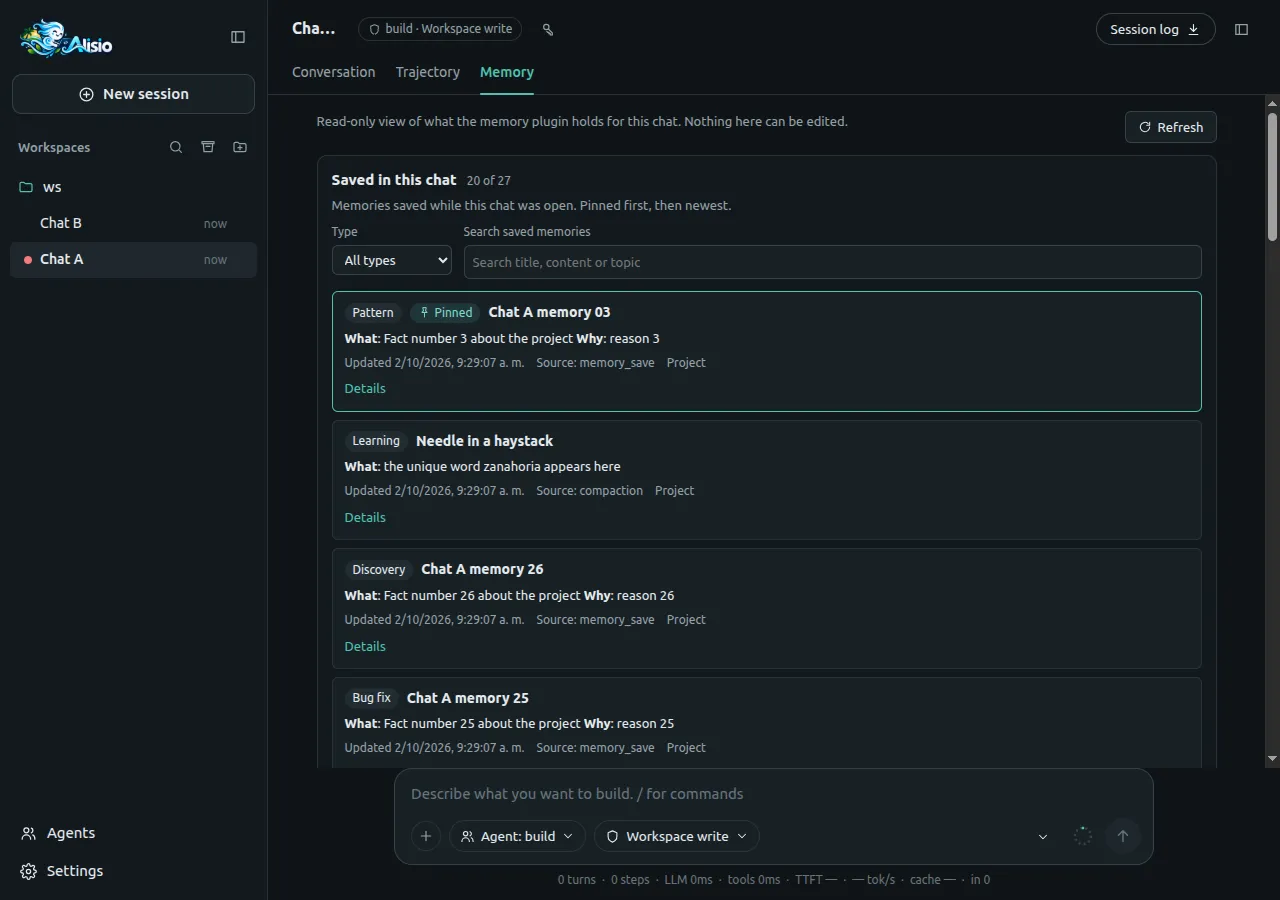
Each section loads, fails and retries on its own. Nothing updates live: Refresh reloads the three sections and keeps your filters, and memories saved while you browse appear after a refresh (the list never repeats or skips an entry while you page). Switching chats reloads the tab and never shows another chat's data. The tab exists only while the plugin is enabled: turning it off in Settings → Plugins removes the tab and returns you to Conversation. An empty chat shows No memory stored for this chat yet.
Memory can hold sensitive project data. The tab is served by the same authenticated session routes as the conversation (GET /api/sessions/:sid/views/memory/…, see plugin data views) and shows it to whoever has this server's session cookie. It is a view: pinning and forgetting stay in the TUI (/memory) and the model's tools. How each section is sourced, and its limits, are in Memory.
Python analysis and artifacts
Files published by Python analysis appear as cards under the tool rows of the turn that produced them: kind icon, file name, kind label and an always-visible download button. On hover or keyboard focus a previewable card says Open file instead of its kind; a card that cannot be previewed (DOCX, ZIP, unknown files, files over the preview limit) never says it, and clicking it downloads. Cards survive reloads (they come from the stored tool results) and show Deleted or Expired when the artifact is gone, or Unavailable with Retry when opening it failed.
Opening a card shows the artifact panel on the right of the chat, in the same slot as the files panel (opening one closes the other):
- Title menu: switches between the session's artifacts (newest first, a filter above eight, arrows, Enter, Esc and type-to-jump; artifacts published meanwhile get a dot and never steal the view), then Open in new tab (dashboards and PDFs), Expand panel, Download analysis sources (for
python_runoutputs), Copy to workspace…, Details, Run again (forpython_runoutputs) and Delete. An expired artifact stays in the list marked Expired; opening it offers only Details and Run again. - Download, Full screen and Close on the right; Close returns the focus to the card.
- Resize with the handle between the chat and the panel (shared with the files panel): drag, double click to reset, or focus it and use ←/→ (16 px, 64 px with Shift), Home/End and Enter. The width is remembered per browser; the chat keeps at least 360 px.
- Previews: Markdown with the chat renderer (relative images resolve inside the artifact), HTML dashboards in the isolated viewer, images with Fit/100 %, PDFs in the browser's own viewer, JSON with the JSON renderer, CSV, TSV and XLSX in the table viewer, and code and text with the code renderer. Anything else, or anything larger than its limit, shows the reason and a Download button.
- Below 900 px the panel is a full-screen dialog. Esc closes the open menu first, then the panel. Settings and Agents open over the panel, which stays loaded behind them.
- Copy to workspace… asks for a folder and runs the
artifact_exporttool in the session: the usual write approval applies, and the copied files appear in Changes./artifacts [filter]opens the panel with its menu.
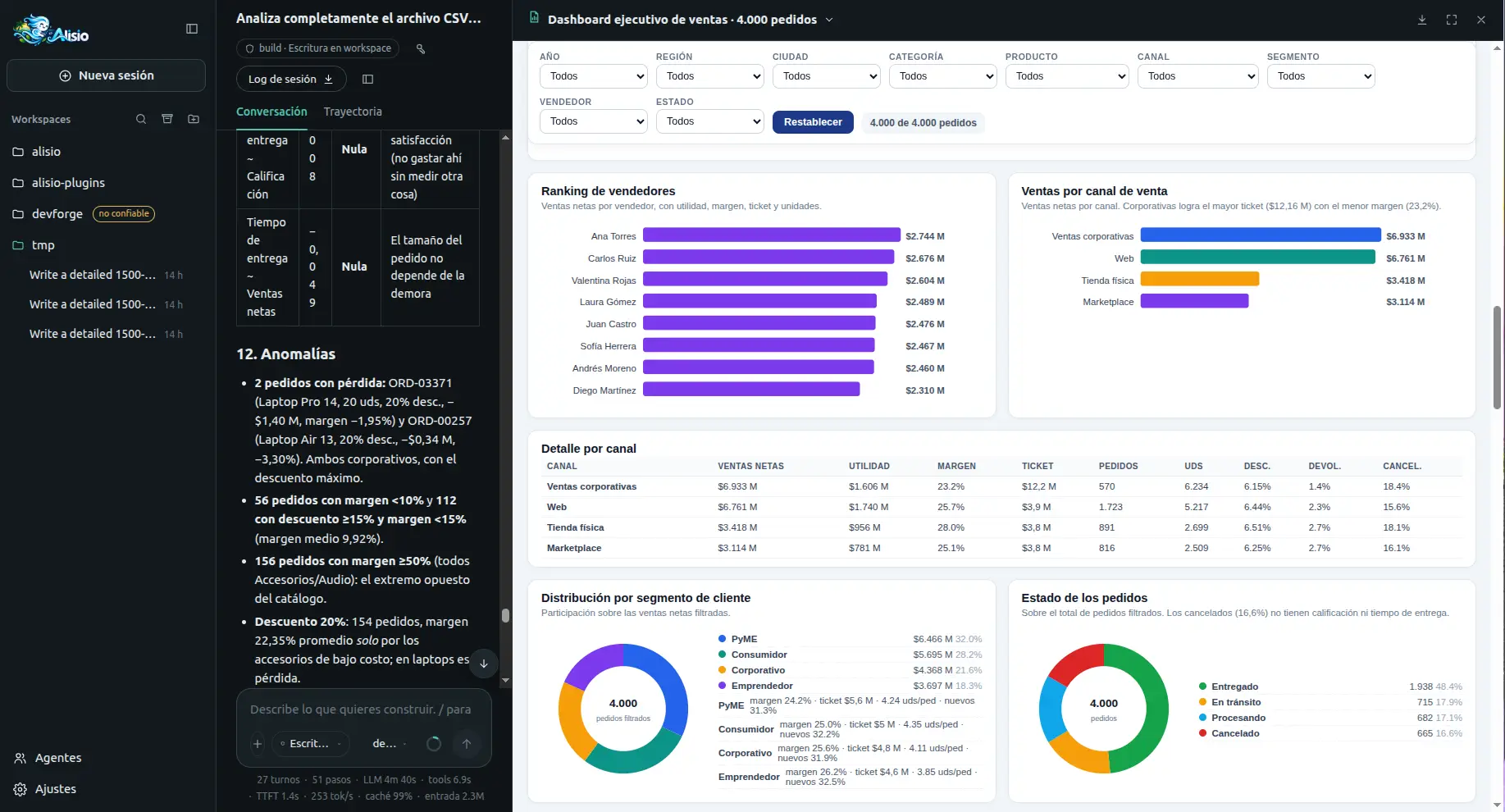
Dashboards run in an iframe with sandbox="allow-scripts allow-downloads" (never allow-same-origin), served from /artifact-view/<token>/… with a signed link that expires after 10 minutes. Its Content-Security-Policy forbids every connection (connect-src 'none') and adds the sandbox directive, so the page has an opaque origin: it cannot read the cookie, the Alisio page, localStorage or the network, also when opened in a new tab. Data must be embedded in the HTML.
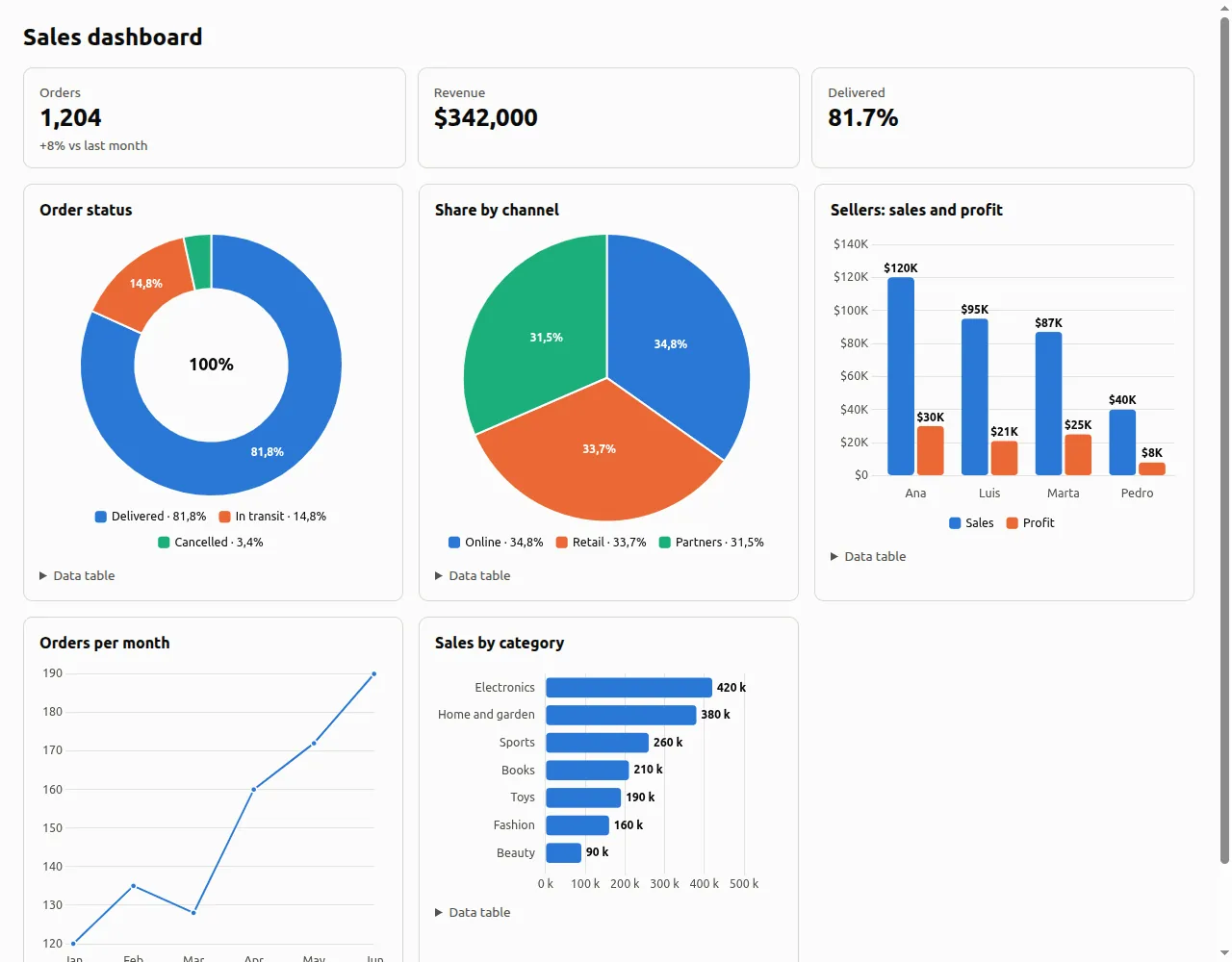
alisio_runtime.charts (Chart.js bundled; see Charts).Running Python asks in the approval panel with the title Run Python analysis?, the warning that managed Python is not a sandbox and the first 40 lines of the script; S (Allow for this session) saves the permission for the session. The key button in the header opens Session permissions, which lists saved permissions with Revoke; /permissions opens it too. Other tabs refresh when a permission is saved or revoked. alisio serve --allow-analysis allows Python without asking in sessions whose preset allows processes (full-access); elsewhere it asks.
Run again repeats the analysis as a new execution with new artifacts (the old ones stay). It is a python_run { rerunOf } call of the session, so the permission above applies and the approval shows the saved script; Details names the execution a rerun repeats. Installing the optional Python packages asks with Install Python packages?, the package list, the download estimate and that it needs the network, and offers only Allow once and Deny (S does nothing: it is never saved).
Settings → Data analysis
The Data analysis page of Settings shows the runtime read only (mode, the Python found or how to install it for your system, the optional packages, the container engine and image, and the reminder that managed Python is not a sandbox) and edits the switch (analysis.enabled), the execution timeout and the three retention values. Changes are validated by the server, written to the global configuration file and shown with when the last cleanup ran. runtime and oci.* are not editable here. See Configuration.
Tables and attached data
The composer's + button (and drag and drop) accepts data files next to images: CSV, TSV, JSON, JSONL and XLSX. A file is uploaded as the raw body of POST /api/sessions/:sid/datasets, kept in the content-addressed blob store and ingested in the background into a SQLite dataset (see Tabular data). The chip says Reading sales.csv… while the server works; the server keeps answering (health, heartbeat) while it does, because ingestion runs in a separate process. When the dataset_ready frame arrives the chip shows the size of the table; a dataset_failed frame (unsupported file, over analysis.data.maxUploadBytes or maxRows, XLSX without Python) turns it into an error with the reason. Sending the message adds a bounded summary (schema, five rows, statistics; at most 4 KB) to what the model reads, while the conversation shows what you typed with the chips; a chip opens the table in the right panel. Data alone sends a default request to look at it.
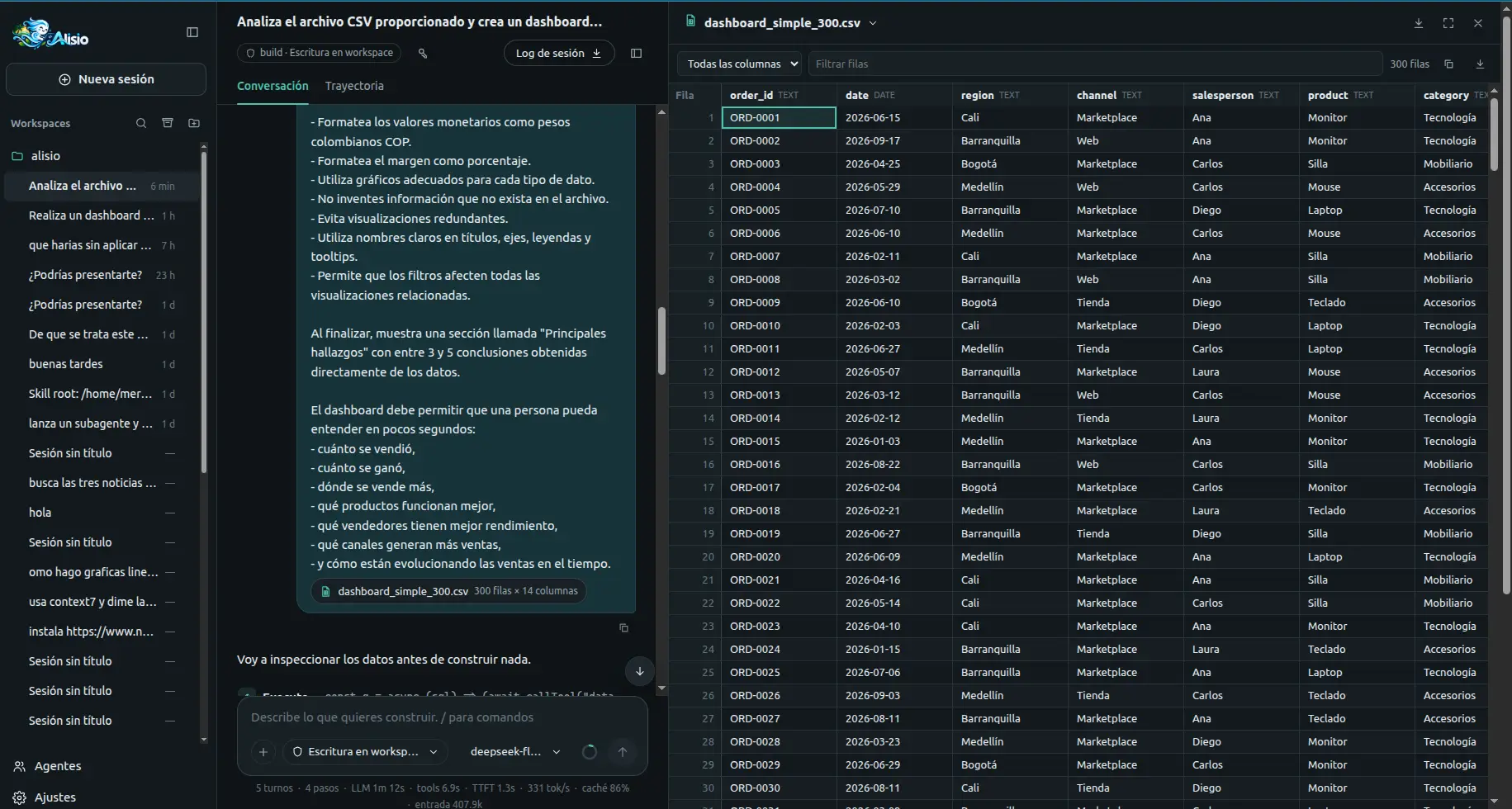
The table viewer (SpreadsheetView) also opens spreadsheet artifacts (CSV, TSV, XLSX), which are ingested the first time they are previewed:
- Fixed 28 px rows and a window of rows and columns, so a million-row sheet scrolls smoothly. Pages of 200 rows come from the keyset-paginated rows API (
rowidcursors) through a cache of 20 pages: scrolling or sorting never repeats or skips a row. Jumping to a row works at any position without sorting; while sorted or filtered it reaches the first 100 000 rows, and farther rows load by scrolling. - Click a header to sort (ascending, descending, none;
aria-sort), type in the filter box (a column, or every column up to 100 000 rows; a substring match), pick a sheet in a workbook, and resize columns by dragging the handle on a header's edge, or with Alt+←/→ (Shift for larger steps) on a focused header. Sorting and filtering are off aboveanalysis.data.maxInteractiveRows(1 000 000) with a notice: the file has no indexes. role="grid"with row and column counts and indexes, one tab stop (arrows, Home/End, PgUp/PgDn, Ctrl+Home/End move between cells; ↑ from the first row reaches the header). Ctrl/Cmd+C copies the cell and Ctrl/Cmd+Shift+C the row (also a toolbar button); Download original is in the toolbar.
API and events
The browser talks to JSON routes under /api and to one Server-Sent Events stream per tab:
GET  /api/health                       unauthenticated: name, version, protocolVersion, capabilities
GET  /api/workspaces?archived=false|true|all   POST /api/workspaces {path}
PATCH /api/workspaces/:wid {label?, pinned?, archived?}
POST /api/workspaces/pick {start?}     native folder dialog → {path} | {cancelled: true} (loopback)
GET  /api/fs/dirs?path=&hidden=        folder names for the in-app browser (loopback)
GET  /api/sessions                     POST /api/sessions            GET|PATCH /api/sessions/:sid
GET  /api/sessions/:sid/messages       GET /api/sessions/:sid/events GET /api/sessions/:sid/runs
POST /api/sessions/:sid/prompts        POST /api/sessions/:sid/cancel  POST /api/sessions/:sid/compact
GET  /api/sessions/:sid/models         GET /api/sessions/:sid/context GET /api/sessions/:sid/export
GET  /api/sessions/:sid/views/:plugin/:view?<params>   read-only data view of an enabled plugin
GET  /api/commands?session=<sid>       POST /api/sessions/:sid/commands {requestId, name, args?}
GET  /api/sessions/:sid/btw            POST /api/sessions/:sid/btw {question}  POST /api/sessions/:sid/btw/cancel
GET  /api/approvals                    POST /api/approvals/:aid      POST /api/interactions/:iid
GET  /api/sessions/:sid/artifacts      GET /api/artifacts/:aid       GET /api/artifacts/:aid/download
GET  /api/artifacts/:aid/files/*       POST /api/artifacts/:aid/view  POST /api/artifacts/:aid/export {target, overwrite?}
GET  /api/artifacts/:aid/sources?logs=1   DELETE /api/artifacts/:aid
GET  /artifact-view/:token/*           isolated viewer (signed link, no cookie)
GET  /api/sessions/:sid/capabilities   DELETE /api/sessions/:sid/capabilities/:gid
GET  /api/sessions/:sid/tasks          background tasks of the root session (+ read-only subagent mirror)
GET  /api/sessions/:sid/tasks/:tid/output?offset=&limit=   {text, nextOffset, eof, status}
POST /api/sessions/:sid/tasks/:tid/stop   the user's stop → {task}; 404 task_not_found for another session's task
GET  /api/sessions/:sid/goal           the session's goal (GoalInfo or null)  PUT /api/sessions/:sid/goal {objective, tokenBudget?, replace?, expect?}
PATCH /api/sessions/:sid/goal {objective?, tokenBudget?: number|null, expect?}   DELETE /api/sessions/:sid/goal?goalId=&epoch=
POST /api/sessions/:sid/goal/pause     POST /api/sessions/:sid/goal/resume   {expect?: {goalId, epoch}} → {goal}; 409 goal_conflict
GET  /api/workspaces/:wid/tree?path=&cursor=   GET /api/workspaces/:wid/file?path=&maxBytes=&download=1
GET  /api/workspaces/:wid/diff?path=   GET /api/sessions/:sid/changes
POST /api/blobs                        raw image body (not JSON) → BlobRef   GET /api/blobs/:hash
POST /api/sessions/:sid/datasets       raw data file, X-File-Name header → 202 {pending} | 200 {dataset}
GET  /api/sessions/:sid/datasets       GET /api/datasets/:did        GET /api/datasets/:did/download
GET  /api/datasets/:did/rows?sheet=&after=&offset=&limit=&sort=&dir=&filter=&column=
POST /api/artifacts/:aid/dataset       ingest a spreadsheet artifact on first preview
GET  /api/events?session=<sid>         the event stream (snapshot, then live frames)
GET  /api/plugins?workspace=<wid>      PATCH /api/plugins/:id {workspace, enabled}
GET  /api/skills?workspace=<wid>       PATCH /api/skills/:id {workspace, enabled}
GET  /api/mcp?workspace=<wid>          PATCH /api/mcp/:name {workspace, enabled, connect?}
POST /api/mcp/consent {workspace, confirmed: true, remember?}
GET  /api/agents?workspace=<wid>       GET /api/settings?workspace=<wid>  PATCH /api/settings {workspace, key, value}
GET  /api/changelog?version=&lastSeen= POST /api/workspaces/:wid/reload   409 runs_active while it has runs
GET  /api/providers?workspace=<wid>    PUT /api/providers/:profile {workspace, provider, values, model}
PUT|DELETE /api/providers/:profile/credentials {apiKey?, bearerToken?}   write-only
POST /api/providers/:profile/activate {workspace, model}   GET /api/models?workspace=<wid>
Plugin data views answer 404 for an unknown session, plugin or view or a disabled plugin, 400 for invalid parameters and view_failed (502), view_too_large (502) or view_timeout (504) when the view fails, answers more than 1 MiB or takes longer than 5 seconds.
A background task that appears or changes state sends a tasks_changed frame ({sessionId, task}) to the stream of its root session; the output is pulled with offset.
A goal that is created, changes state or spends tokens sends a goal_changed frame ({sessionId, goal}, goal: null once cleared) to the stream of its session, and the snapshot of a (re)connection carries the goal. 409 goal_conflict answers an action based on an out-of-date expect or one the state does not allow, 404 goal_not_found a session without a goal and 409 goal_disabled a new goal while goal.enabled is false; PUT over an existing goal needs replace: true.
Dataset uploads end with a dataset_ready or dataset_failed frame to the session's stream. Data errors use the codes dataset_unsupported (415), query_rejected (400) and query_timeout (408).
Management changes send a catalog_changed frame (commands, plugins, skills, mcp, models or agents) to every stream, so other tabs refresh. Activating a profile answers 409 runs_active while the workspace has runs, and granting MCP access from the web is recorded with the interactive-web source.
On every (re)connection the stream sends a snapshot of each subscribed session (recent messages, text still streaming, the run's start time, pending approvals) followed by live frames; durable events carry their eventId as the SSE id, and streamed text arrives coalesced about 30 times per second. The protocol version is reported by /api/health and in the stream's first frame.
Limitations
- Single host: session locks rely on process ids, and the web does not see live changes a TUI makes to a session until the session is reopened.
- No TLS; remote access is opt-in and meant for SSH tunnels.
- The provider is per workspace: Activate in this workspace switches that workspace's application (and saves the profile as the default for new starts); other open workspaces keep their provider until they reopen. Saved credentials apply the next time the profile is activated.
- MCP access granted from the web lasts until
alisio servestops and covers one workspace, unless you choose to remember it for the user. - Background tasks are children of the server process: they end when
alisio servestops, and a task started from the TUI is only visible (not stoppable) from the web while that TUI runs. - A goal started from the TUI is read from the shared database when the session opens, but the web does not see its live changes (like any TUI activity), and only the process that drives a goal continues it; a goal whose server stops comes back paused.
- The standalone binary serves the API only; the web UI assets ship with the npm package.
- The web UI keeps command output, notices and reasoning only while the page is open; a reload rebuilds the conversation from stored messages.
- Shift+Tab cycles agents only from the message box (see Agent selector); the changelog is English-only and
/reloadcannot reload plugin code that was already imported. - The files panel shows the workspace only: directories added with
--add-dirare not browsable, symbolic links are listed but never followed (even when they point inside the workspace), and.gitignorefiltering needsgitonPATH. Changes only knows files written throughwrite_fileandedit_file; files a shell command changed appear ingit status, not there. - Artifact previews: Esc pressed inside a dashboard never reaches Alisio (use Close); dashboards cannot use the network,
localStorage, module scripts or web fonts from files (fonts must be inlinedata:URLs); a view link expires after 10 minutes (reopening renews it); PDFs use the browser's viewer withoutsandboxand fall back to a download where there is none. Downloads of multi-file artifacts are ZIP archives. - Tables: sorting and filtering scan the sheet (the dataset file has no indexes), so they are off above
analysis.data.maxInteractiveRows; cells longer than 4 096 characters are cut in the grid (the dataset keeps them whole); an XLSX needs Python 3.10+ to be read. - Uploaded images are stored once per content hash next to the session database and are not deleted automatically.
- Rich renderers need JavaScript chunks the page loads on demand: Mermaid is large (a few hundred KB compressed across its chunks) and only loads when a diagram is shown.